
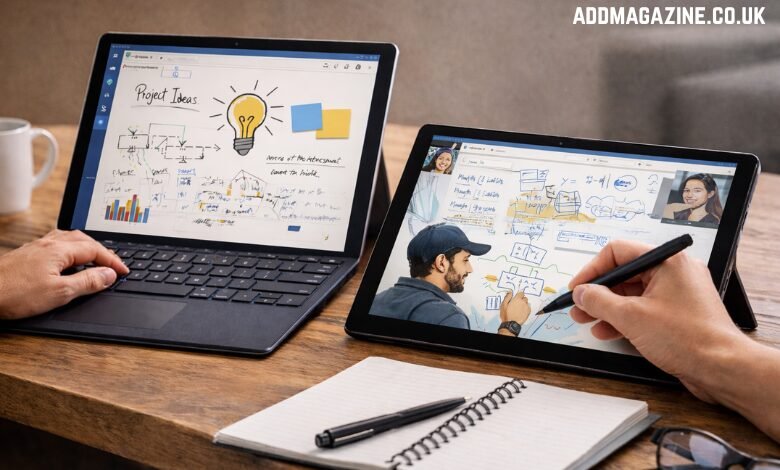
In an era where digital devices have become integral to our daily lives, it’s no surprise that software developers are constantly striving to enhance user experience through innovative features. Microsoft Ink, part of the Windows operating system, is one such feature that takes the traditional concept of handwriting, sketching, and annotation to the next level, offering a more intuitive and natural way to interact with digital content. Through its seamless integration with various Microsoft tools and apps, Microsoft Ink has transformed how users engage with their devices, making it an indispensable tool for creative professionals, educators, and casual users alike. In this article, we’ll delve into what Microsoft Ink is, how it works, and how you can make the most of this powerful feature.
What is Microsoft Ink?
Microsoft Ink is an advanced digital inking system that enables users to interact with their Windows devices through digital pens, styluses, or even their fingers. It is a native feature embedded directly into the Windows operating system, ensuring that inking works consistently across different applications and workflows. Unlike basic drawing or annotation tools, Microsoft Ink operates at the system level, making it an integral part of the user interface.
In essence, Microsoft Ink allows users to “write” or “draw” on their devices as if they were using a physical pen and paper. This natural and responsive interaction enables users to annotate documents, take handwritten notes, create digital art, and more—all within the same environment without needing additional apps or complex setups.
How Microsoft Ink Works
At its core, Microsoft Ink is designed to streamline the inking experience by offering a smooth and efficient way to use digital pens across different applications and use cases. It’s built into Windows, so you don’t need to install anything extra to start using it.
Key Features of Microsoft Ink:
- Seamless Pen Input: Whether you are writing notes, sketching, or annotating, Microsoft Ink captures your pen or stylus movements in real-time, ensuring that each stroke feels as natural as writing on paper.
- Handwriting to Text Conversion: One of the standout features of Microsoft Ink is its ability to convert handwritten text into typed text. This functionality is perfect for those who prefer writing by hand but want the convenience of digital text.
- Rough Sketches to Clean Shapes: Microsoft Ink can automatically transform rough sketches into clean, defined shapes. Whether you’re sketching a quick diagram or drawing a complex design, this feature ensures your work looks professional.
- Integration with Microsoft Office: Microsoft Ink is built directly into popular Microsoft Office apps like Word, PowerPoint, and Excel. This integration allows users to annotate documents, create handwritten notes, and even draw shapes directly in their work.
- Gesture-Based Navigation: Instead of navigating through menus and icons, Microsoft Ink supports simple gestures that allow you to perform tasks quickly. This streamlines the experience and helps users stay in their creative flow without interruptions.
- Windows Ink Workspace: The Windows Ink Workspace is a quick-access control center for all inking features, allowing users to open a variety of inking tools with just a click. This workspace is easily accessible from the taskbar or by pressing the pen button on supported devices, ensuring you’re always ready to start inking.
Applications of Microsoft Ink
Microsoft Ink isn’t just a tool for doodling or taking notes—it has found its place in several professional and educational environments, making it an invaluable resource for a wide range of users.
1. Education: A New Way to Engage with Students
Teachers and students have embraced Microsoft Ink for its versatility and ease of use. Teachers can write, annotate, and draw directly on presentations, helping to explain concepts more effectively in a visual manner. Students can take notes, solve problems, and share their work in a more dynamic way, making learning more interactive and engaging.
For example, teachers can use Microsoft Ink in PowerPoint presentations to draw diagrams, highlight text, or mark up slides in real-time. This creates a more engaging and dynamic teaching experience, encouraging active participation from students.
2. Creative Professionals: Digital Art and Design
Graphic designers, illustrators, and other creative professionals can significantly enhance their workflow with Microsoft Ink’s advanced pen and stylus capabilities. It offers a smooth and natural drawing experience, making it easier to bring ideas to life on-screen. While it isn’t a fully-featured design tool like Adobe Illustrator or Photoshop, Microsoft Ink serves as a solid foundation for quick sketches, brainstorming, and note-taking during the creative process.
For example, designers can quickly sketch logos, wireframes, or concepts on a digital canvas without having to switch between different software. The natural feel of inking allows for fluid creativity, making it ideal for capturing spontaneous ideas.
3. Collaboration and Communication
In professional settings, Microsoft Ink has become an essential tool for collaboration. Teams can use it to create shared visual languages, annotate documents, or brainstorm ideas during meetings. For instance, Microsoft Whiteboard uses Ink as a collaborative tool that allows multiple users to draw, write, and add notes in real-time.
This feature is particularly useful for remote teams or those working in hybrid environments, as it ensures that everyone can participate in discussions and visualize ideas, even if they’re not in the same room.
4. Accessibility and Ease of Use
Microsoft Ink provides accessibility features that make it easier for users with different needs to interact with their devices. The ability to handwrite notes and convert them into digital text is especially helpful for individuals who struggle with typing or have limited motor skills. Moreover, the customization options available in the Ink Workspace allow users to adjust settings to their preferences, enhancing the overall experience.
How to Access Microsoft Ink
Getting started with Microsoft Ink is simple. Here’s how you can access it and begin using its features:
Step 1: Windows Ink Workspace
To access Microsoft Ink’s features, open the Windows Ink Workspace. This can be done in two ways:
- From the Taskbar: Select the pen icon (if available) on the taskbar to launch the Windows Ink Workspace.
- By Pressing the Pen Button: On devices that support pen input, you can press the pen button on your stylus to open the workspace instantly.
Step 2: Using Inking Features in Microsoft Office
Microsoft Ink is integrated directly into popular Microsoft Office applications such as Word, Excel, and PowerPoint. To begin using Ink in these apps, open a document, presentation, or spreadsheet, and look for the “Draw” tab in the ribbon. From here, you can select the pen tool, choose your desired pen thickness and color, and start inking on the document.
Step 3: Microsoft Whiteboard
For those who need a more collaborative, freeform canvas, Microsoft Whiteboard is a great tool. It allows multiple users to draw, write, and annotate in real-time, making it perfect for brainstorming sessions or group projects. You can access it through the Windows Ink Workspace or by downloading the app from the Microsoft Store.
Step 4: Inking in Apps like OneNote
If you use OneNote for note-taking, you can integrate Microsoft Ink directly into your notes. Simply select the pen tool and start writing or drawing on your digital notebook. OneNote also includes handwriting-to-text conversion, which can automatically convert your notes into typed text, making them easier to read and search.
Devices That Support Microsoft Ink
While Microsoft Ink can work on any Windows device, it performs best on devices designed specifically for pen input. These devices include:
- Surface Devices: Microsoft’s own line of Surface devices, such as the Surface Pro and Surface Book, are designed with pen input in mind. These devices come with high-resolution touchscreens and a responsive pen, making them ideal for inking.
- Windows Laptops and Tablets: Many modern Windows laptops and tablets are compatible with styluses and digital pens. Opt for devices with active pen compatibility to ensure the most precise and responsive inking experience.
- Graphics Tablets: For digital artists and designers, a graphics tablet with a stylus can provide a more precise and detailed inking experience.
Enhancing Productivity with Microsoft Ink: Practical Use Cases
In addition to its basic functionality as a digital pen tool, Microsoft Ink plays a significant role in improving productivity in a wide range of professional environments. Below are some practical use cases that demonstrate how Microsoft Ink can enhance your workday, whether you’re in a corporate setting, classroom, or creative field.
1. In the Classroom: Empowering Educators and Students
Education has seen a major shift in how teachers and students interact with technology, and Microsoft Ink is at the forefront of this transformation. Teachers can utilize Ink’s real-time annotation and drawing capabilities to explain concepts more dynamically. Instead of relying solely on text-heavy presentations, instructors can illustrate ideas with visuals, annotate on existing documents, and even create interactive lessons. This makes learning more engaging for students who benefit from seeing complex ideas visually.
For example, a teacher might use Microsoft Ink to sketch a diagram during a lesson on biology, showing how the circulatory system functions. The same teacher can then convert their handwriting to text, create bullet points of key concepts, and share those notes with students. This feature benefits both in-person and remote learning environments, making Microsoft Ink a versatile tool in today’s educational landscape.
2. In the Creative Industry: Sketching Ideas and Prototyping Designs
For creatives, such as graphic designers, illustrators, or product designers, Microsoft Ink provides an excellent way to quickly sketch and prototype ideas. With a digital pen or stylus, designers can capture their initial thoughts without having to open complex design software. This allows for faster iteration and a more fluid creative process.
For example, a designer might use Microsoft Ink on a Surface tablet to sketch out rough design concepts for a new logo. They can then quickly modify those sketches, converting them into cleaner shapes or adding annotations to highlight key aspects. Once the design is more refined, it can be transferred into more advanced software for further detailing.
Moreover, the ability to integrate Ink with apps like Microsoft Whiteboard and OneNote allows teams to collaborate on designs and share ideas in real-time, even if they’re not in the same location. This is especially useful in the modern work environment where remote collaboration is becoming increasingly common.
3. In Business: Collaboration and Brainstorming
Microsoft Ink is not only useful for personal productivity but also plays a crucial role in enhancing teamwork and collaboration in professional settings. With tools like Microsoft Whiteboard, teams can brainstorm ideas, sketch flowcharts, or map out projects during meetings. Whether your team is in the same room or spread across multiple locations, everyone can contribute to the discussion and visualize concepts in real-time.
For example, a project manager might use Microsoft Ink to create a timeline on a virtual whiteboard, and team members can immediately provide input or draw connections between different tasks. This interactive method of collaboration allows for more engaging meetings and ensures that all team members can participate in decision-making processes.
4. In Remote Work: Enhancing Virtual Communication
As remote work becomes more prevalent, the need for effective communication tools has grown. Microsoft Ink’s integration with platforms like Microsoft Teams and Office 365 allows users to add a more personal touch to their virtual meetings. Instead of relying on text-heavy slides or static images, participants can sketch, draw, and annotate on shared documents, making the communication more dynamic and interactive.
For example, during a virtual meeting, a project lead might use Microsoft Ink to annotate on a PowerPoint presentation, highlighting key points or drawing attention to specific areas of focus. Team members can also add comments or questions directly on the slide, improving the clarity of communication and ensuring everyone is on the same page.
5. Improving Accessibility and Inclusivity
One of the significant advantages of Microsoft Ink is its accessibility features. For individuals with disabilities or those who struggle with traditional typing, digital inking offers an alternative way to interact with their devices. Microsoft Ink’s handwriting-to-text feature can be especially useful for people with limited motor skills, allowing them to write naturally and have their notes automatically converted into digital text.
Additionally, Microsoft Ink can help bridge the communication gap for individuals who find it easier to express themselves through visual means rather than written words. This makes it an inclusive tool for a diverse range of users, ensuring that everyone has the opportunity to communicate effectively in a digital environment.
Microsoft Ink Across Devices: What You Need to Know
To fully benefit from Microsoft Ink, it’s essential to use a device that supports pen input. While Microsoft Ink can technically work on any Windows device, it performs best on devices specifically designed for pen interaction. These devices typically feature high-resolution touchscreens and come with a stylus or digital pen that’s optimized for inking.
1. Surface Devices: Built for Pen Input
Microsoft’s Surface line of devices, such as the Surface Pro, Surface Laptop, and Surface Book, are the gold standard when it comes to inking. These devices feature highly sensitive touchscreens that fully leverage the capabilities of Microsoft Ink for an optimal user experience. Additionally, the Surface Pen, which is sold separately, is a precision stylus that delivers a natural writing experience, making it perfect for digital note-taking, drawing, and annotating.
If you’re someone who values the inking experience and needs a device that can handle everything from sketching to professional-level note-taking, the Surface series is the way to go. These devices are designed to provide a seamless inking experience, and Microsoft continues to improve them with every new iteration.
2. Windows Laptops and Tablets: Compatibility Across the Board
While Surface devices are specifically built with inking in mind, many modern Windows laptops and tablets also support digital pens. Devices from brands like HP, Dell, Lenovo, and ASUS are equipped with stylus-compatible screens, ensuring that Microsoft Ink works smoothly across a variety of devices.
However, it’s important to note that the inking experience can vary depending on the device. While high-end laptops and tablets offer excellent responsiveness and accuracy, budget devices may have limitations in terms of pen pressure sensitivity or screen responsiveness. Therefore, if inking is a critical part of your workflow, it’s worth investing in a device specifically designed for pen input.
3. Windows Ink on Smartphones and Other Touchscreen Devices
In addition to tablets and laptops, some touchscreen smartphones running Windows also support Microsoft Ink. Although the experience may not be as seamless as on larger devices, the functionality remains useful for on-the-go note-taking and quick sketches. For professionals who frequently travel, the ability to use a digital pen on a smartphone can provide a valuable option for capturing ideas or reviewing documents without needing to carry a larger device.
The Future of Microsoft Ink
Microsoft continues to evolve its digital inking capabilities, ensuring that Microsoft Ink remains an essential tool in the world of digital productivity. As pen input technology continues to advance, we can expect even more precise and responsive inking experiences. Microsoft is also likely to expand the functionality of Ink across more applications, offering users even greater flexibility in how they interact with their devices.
Furthermore, as AI and machine learning technology advances, Microsoft Ink could incorporate smarter features, such as improved handwriting recognition, enhanced conversion of sketches to shapes, and automatic categorization of handwritten notes. These advancements could further streamline workflows and open up new possibilities for creative professionals and everyday users alike.
Conclusion
Microsoft Ink is a powerful and versatile feature that enhances the way users interact with their Windows devices. Whether you’re an educator looking to engage students in new ways, a designer brainstorming ideas, or simply someone who prefers handwriting to typing, Microsoft Ink provides a seamless and intuitive experience. Its integration with Microsoft Office apps, accessibility features, and ability to convert handwriting into text make it a must-have tool for productivity, creativity, and communication.
As Microsoft continues to innovate and improve its digital inking capabilities, users can expect even more powerful tools and features to make their workflows smoother and more efficient. Whether you’re a student, professional, or creative, Microsoft Ink has something to offer everyone, making it a truly invaluable tool in today’s digital world.