
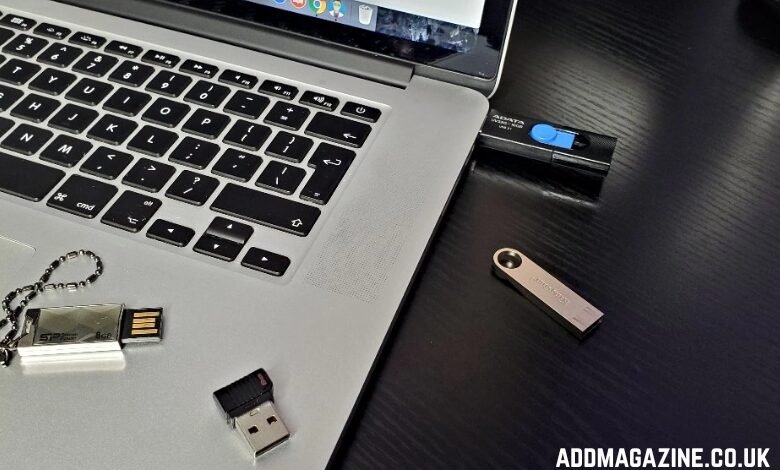
Losing important files from a USB drive can be frustrating, whether it happens due to accidental deletion, formatting, file system corruption, or an unexpected error. USB drives are widely used for transferring and storing data, but they are also prone to data loss because of improper removal, virus attacks, or human mistakes. Fortunately, with the right approach and tools, it is often possible to retrieve lost data from USB drive devices effectively.
Windows File Recovery (WinFR) is a powerful solution provided by Microsoft that allows users to recover lost files from storage devices, including USB drives. In this guide, we will explain how USB data loss happens, how WinFR works, and how you can successfully restore your files step by step.
Common Reasons USB Data Gets Lost
Understanding why data loss occurs helps you choose the right recovery method and avoid future issues.
Accidental Deletion
One of the most common reasons for USB data loss is accidental deletion. Files deleted using the keyboard or file manager usually bypass the Recycle Bin when removed from external storage.
Formatting the USB Drive
Formatting a USB drive erases the file system structure. While the data may still exist physically on the drive, it becomes inaccessible without recovery tools.
File System Corruption
Improper ejection, power failures, or malware can corrupt the USB file system, making files unreadable or invisible.
Virus or Malware Attacks
Some viruses hide or delete files stored on USB drives, creating the illusion that data is lost permanently.
Physical or Logical Errors
Bad sectors, file allocation errors, or logical damage can prevent access to stored data even if the USB drive is detected.
What Is Windows File Recovery (WinFR)?
Windows File Recovery (WinFR) is a Microsoft-developed command-line utility designed to recover deleted files from local storage devices. It supports recovery from:
- USB flash drives
- External hard drives
- Internal drives
- SD cards
WinFR works by scanning the storage device at a low level to locate recoverable file fragments that have not yet been overwritten.
If you want a reliable way to retrieve lost data from USB drive storage, WinFR is a strong option, especially for Windows users.
File Systems Supported by WinFR
WinFR supports multiple file systems commonly used on USB drives:
- NTFS – Used mostly on Windows systems
- FAT32 – Common on smaller USB drives
- exFAT – Widely used for large-capacity USB drives
- ReFS – Used in specific Windows environments
Choosing the correct recovery mode depends heavily on the file system used by your USB drive.
Important Steps Before Starting USB Recovery
Before using WinFR, take the following precautions to improve recovery success:
- Stop using the USB drive immediately
- Do not copy new files to the USB
- Avoid formatting the drive again
- Prepare a separate drive to save recovered files
Writing new data to the USB drive may overwrite deleted files and make recovery impossible.
How WinFR Recovery Modes Work
WinFR offers different recovery modes depending on the situation.
Regular Mode
- Best for recently deleted files
- Works primarily with NTFS file systems
- Retains file names and folder structure when possible
Extensive Mode
- Used for formatted or corrupted USB drives
- Works with FAT32 and exFAT
- Performs a deep scan for file signatures
For most USB recovery cases, Extensive mode provides better results.
Step-by-Step Guide to Retrieve Lost Data from a USB Drive Using WinFR
Step 1: Download and Install WinFR
WinFR is available through the Microsoft Store. Install it on your system drive, not on the USB drive you want to recover data from.
Step 2: Connect the USB Drive
Insert the USB drive into your computer and ensure it is detected properly. Do not allow Windows to run repair or format prompts.
Step 3: Open Command Prompt as Administrator
WinFR is a command-line tool, so you must run Command Prompt with administrator privileges.
Step 4: Identify Drive Letters
Note the drive letter of:
- The USB drive (source)
- The destination drive where recovered files will be saved
The destination must be different from the USB drive.
Step 5: Run the WinFR Command
A basic recovery command may look like this:
- Source drive: USB
- Destination drive: Another disk
- Mode: Extensive
WinFR will scan the USB drive and save recoverable files to the destination location.
Understanding the Recovery Results
Once the scan is complete:
- Recovered files are saved in folders
- File names may be generic if metadata is missing
- Sorting by file type can help locate important files
Preview files where possible to confirm data integrity.
Using WinFR for Different Data Loss Scenarios
Recovering Deleted Files
WinFR can restore files deleted accidentally if they haven’t been overwritten.
Recovering Files After Formatting
Deep scans allow recovery even after a USB drive has been formatted, especially if it was a quick format.
Recovering Data from Corrupted USB Drives
If the file system is damaged but the USB drive is still detected, WinFR can extract file data using signature scanning.
Advantages of Using WinFR for USB Recovery
- Developed by Microsoft
- Free to use
- Supports multiple file systems
- Effective for deep recovery
- Suitable for advanced users
For users comfortable with technical tools, WinFR provides excellent recovery capabilities.
Learning WinFR Commands and Advanced Usage
Because WinFR is a command-line utility, understanding its syntax can significantly improve recovery results. Different switches and parameters allow you to target specific file types, folders, or recovery scenarios.
If you want to explore advanced usage, check more command tutorials here:
These tutorials explain command structures, recovery modes, and best practices in a clear and practical way.
Common Mistakes to Avoid During USB Recovery
- Saving recovered files to the same USB drive
- Repeatedly scanning after overwriting data
- Interrupting deep scans
- Using multiple recovery tools simultaneously
Any of these mistakes can reduce recovery success.
When WinFR May Not Be Enough
WinFR may not work if:
- The USB drive has physical damage
- Data sectors are completely overwritten
- The drive firmware is corrupted
In such cases, professional data recovery services may be required.
Tips to Prevent USB Data Loss in the Future
- Always eject USB drives safely
- Keep backup copies of important files
- Use reliable USB brands
- Avoid using USB drives on infected systems
- Periodically check USB drive health
Prevention saves time, money, and stress.
Final Thoughts
USB data loss is a common problem, but it does not always mean your files are gone forever. With the right tool and correct steps, you can successfully retrieve lost data from USB drive storage devices. Windows File Recovery offers a powerful, free solution for recovering deleted, formatted, or corrupted USB data when used correctly.
For users who want deeper control and flexibility, WinFR remains one of the most effective recovery tools available on Windows. By understanding its recovery modes and commands—and by following best practices—you can maximize your chances of restoring valuable data safely and efficiently.