Are you a dedicated gamer who spends hours immersed in your favorite titles, only to be frustrated by sudden crashes or annoying graphics glitches? These issues can quickly ruin the gaming experience, especially when they occur at critical moments. In many cases, outdated or corrupted drivers are the hidden cause behind these problems. That’s where Driver Booster comes in. This tool enables users to update all outdated drivers on their device with a single click. In this guide, we’ll show you how to fix common game glitches and crashes easily using Driver Booster. Ensure to read this guide till the end.
Part 1: Why Your Games Keep Crashing and Glitching
Crashing and glitching in games can be caused by several reasons. Here are some of the common reasons that cause these types of issues:
- Outdated Drivers: One of the most common reasons behind game crashing and graphics glitches is outdated or incompatible drivers. When drivers are not updated, the game may experience lag, screen tearing, or sudden crashes.
- Incorrect Game Settings: Incorrect game settings can also lead to crashes and graphic glitches. If your settings — such as resolution are set higher than what your hardware can handle, the game may lag or crash unexpectedly.
- Slow Internet Connection: Many popular games like Fortnite, Valorant, and Call of Duty require a stable or active internet connection to work properly. An unstable connection can cause game crashing or glitching.
Part 2: How to Fix Game Crashing Using Driver Booster
As mentioned earlier, one of the most common reasons behind game crashing and glitching is outdated drivers. That’s where Driver Booster comes in. It is a powerful and easy-to-use driver updater that can update outdated drivers with a single click — no manual effort required. With its advanced scanning technology, Driver Booster automatically detects missing, outdated, or corrupted drivers on your system and provides the latest compatible version. Additionally, the program includes amazing features like automatic backup before updating, ensuring you can restore the previous version if needed.
Key Features of Driver Booster:
- Single-Click Updates: Driver Booster enables users to update all PC outdated drivers with a single click. It automatically detects outdated drivers and updates them to the latest versions.
- Extensive Driver Database: The program includes 18 million drivers, including audio, printer, graphics, and more. Every driver available in this program comes directly from official websites or Windows.
- Dual Certification: Every driver available on this program passes both WHQL certification and iObit’s strict review process, ensuring maximum safety, stability, and compatibility.
- Intuitive Interface: One of the standout features of this tool is that it offers an easy-to-use interface, allowing users to fix game crashing and glitching issues without any professional help:
Step-by-Step Guide:
To fix game crashing using Driver Booster, follow the instructions mentioned below:
- Navigate to the IObit official site and download the latest version of the program on your PC. Launch it and click on the “Scan” button.
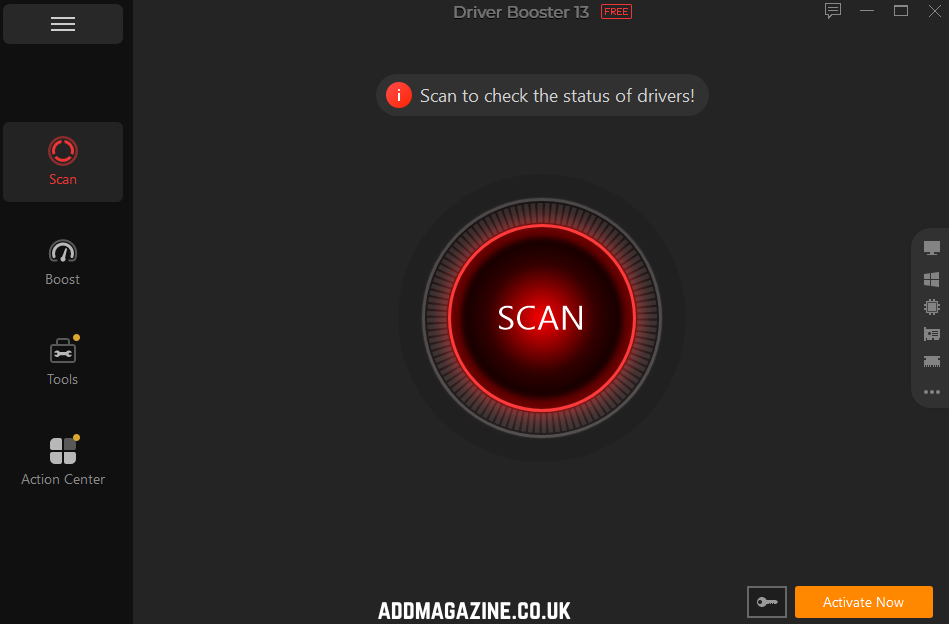
- The program will begin the scanning process and detect the missing or outdated drivers on your PC.
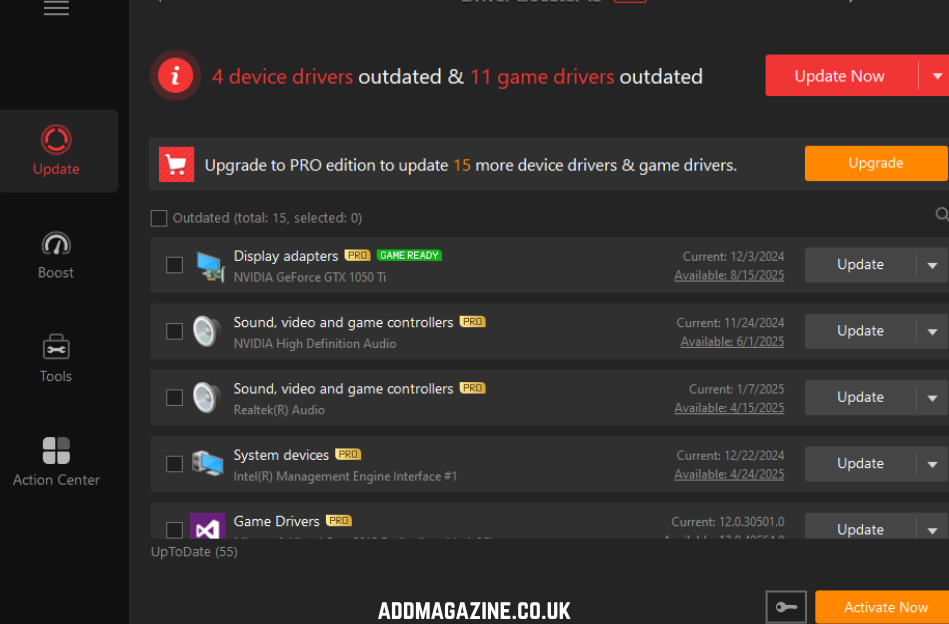
- Once the scanning process is complete, click on “Update All” to automatically download and install all outdated, missing, or corrupted drivers at once.
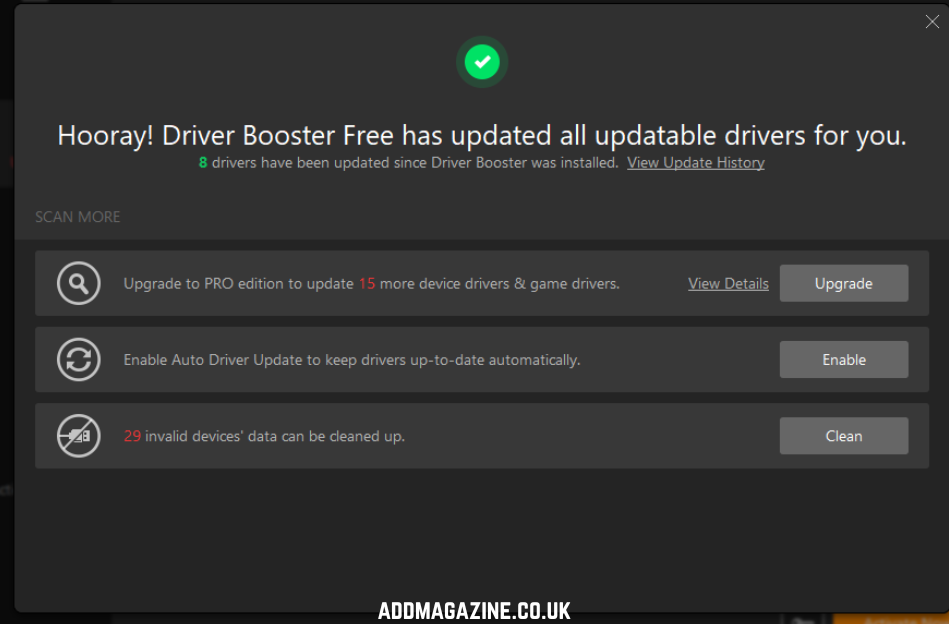
Open your game and enjoy a smooth, uninterrupted gaming experience.
Part 3: Other Methods to Fix Game Glitches and Crashes
Driver Booster is the most effective way to solve common issues like glitches and crashes.
- Restart PC
If you want to fix game glitches and crashes without any third-party programs, restarting your device is a simple and effective solution. It will eliminate minor bugs and glitches in your system. Here is how to do it:
- Click on the “Start” and select the “Power” option.
- Choose “Restart.”
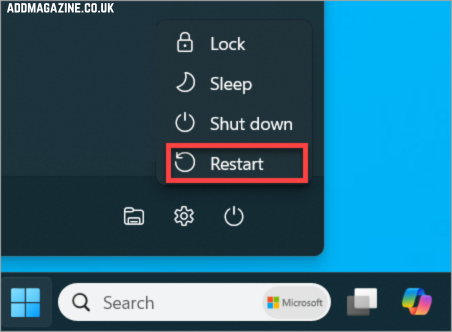
- Wait for your PC to shut down and reboot completely.
- Enable Game Mode
When enabled, it automatically reduces background activity and limits notifications that could interrupt gameplay. To enable Game Mode:
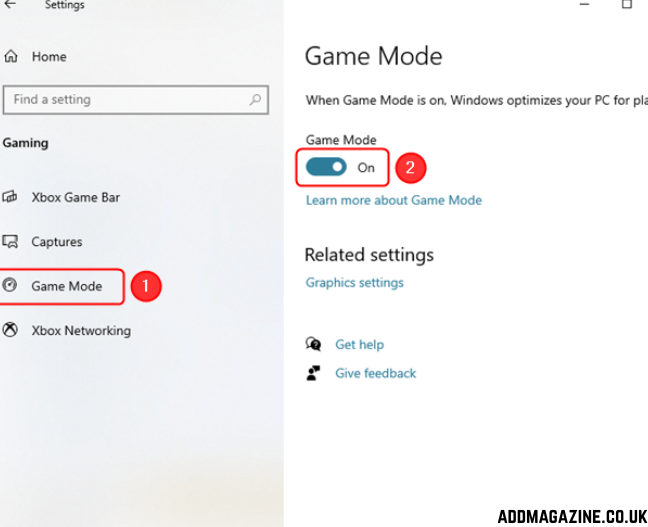
- Click on the “Start” and select the “Windows Settings.”
- Select “Gaming.” Next, hit the “Game Mode.”
- Enable “Game Mode.”
Final Thoughts
Glitches and crashes can completely ruin the game experience. Driver Booster can solve these types of issues with a single click — no manual effort required. By keeping your drivers up to date, you not only reduce crashes and glitches but also improve overall system stability and gaming performance.