
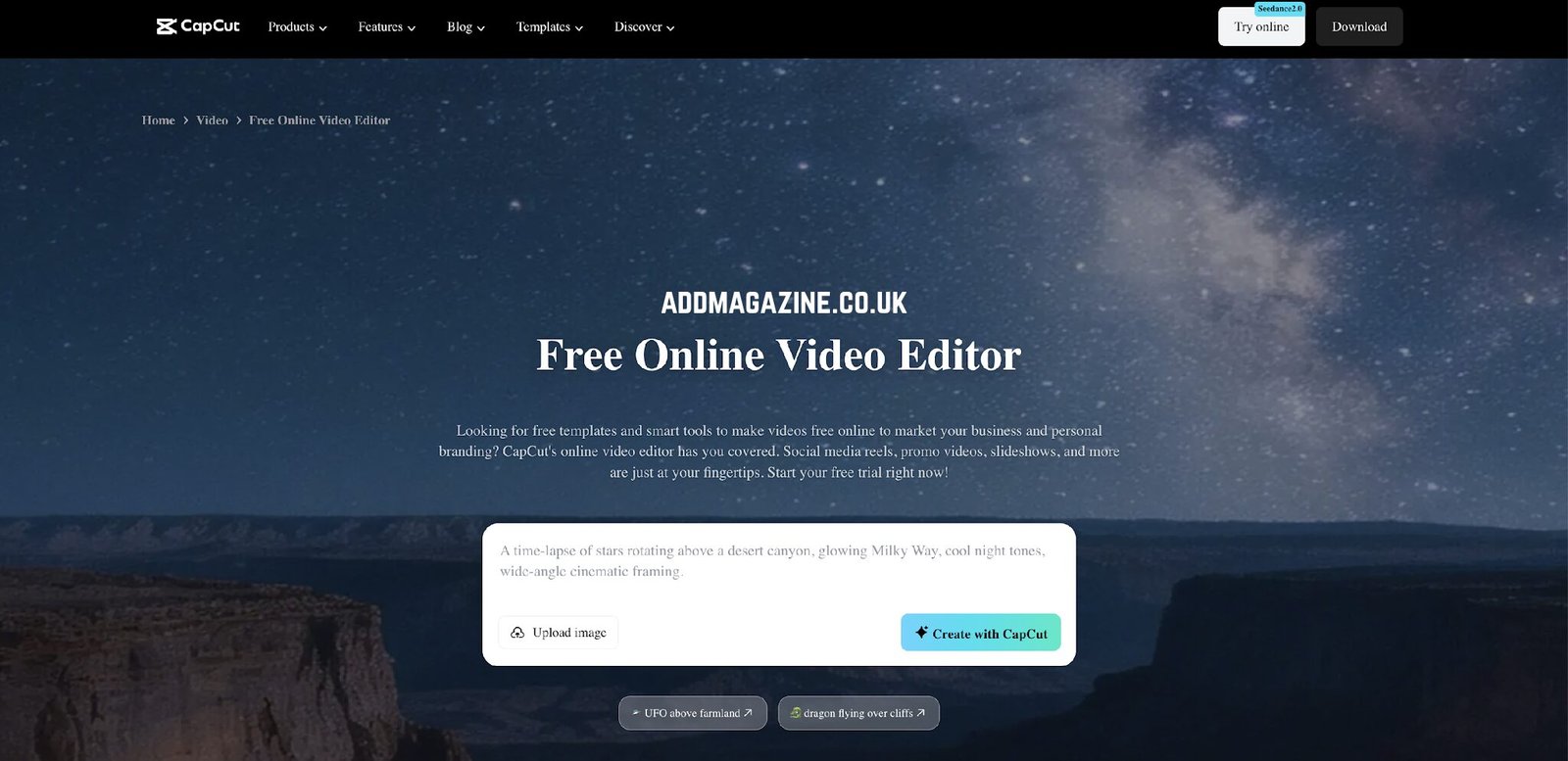
One of the most persistent myths in podcasting is that growing a show is primarily about the quality of the episodes themselves. Audio quality matters. Content quality matters enormously. But the shows that grow consistently are almost universally the ones that have figured out how to extend the reach of each episode beyond the podcast directories where their show lives. CapCut’s online video editor lets podcasters quickly cut episodes into short-form video clips, add animated captions, and export to every major social platform without leaving the browser.
Why Audio-First Content Needs Visual Distribution
The fastest-growing podcasts right now show up in short-form video feeds. A thirty-second clip from a podcast episode, paired with synced captions and a clean visual, reaches audiences on Instagram Reels, TikTok, YouTube Shorts, and LinkedIn who would never have found the show through podcast directories alone. Those short clips serve as previews, giving potential listeners enough of a taste of the content and the host’s personality to decide whether they want more.
The competition for attention in podcast directories is fierce. Most new listeners discover shows through social media, word of mouth, or a short clip that caught their eye mid-scroll. If your content only lives in podcast apps, you are invisible to a huge portion of your potential audience. Showing up in visual feeds with short, captioned clips changes that entirely.
Building a Visual Identity Around Your Show
Every episode needs a shareable visual asset beyond the audio file itself. A quote card gives people something to engage with on visual platforms where audio cannot play inline. CapCut’s online photo editor lets you create quote cards and promotional graphics quickly by uploading your podcast cover art, overlaying a compelling pull quote in your brand font and colors, and downloading the finished image in minutes.
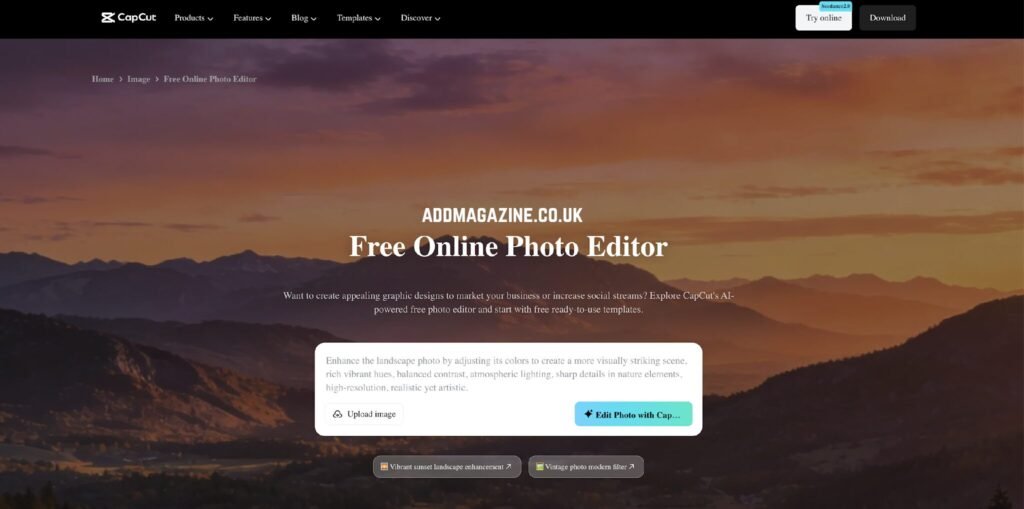
Creating five quote card variations from a single episode takes about twenty minutes and gives you enough visual content to cover an entire week of social posts. Each card highlights a different insight or moment from the episode, so your audience gets a reason to tune in even if they scroll past the first post. Consistency in visual style, the same fonts, the same colors, the same layout, builds brand recognition over time and makes your show feel like a professional operation even if you produce it solo.
Making the Most of Every Recording
The podcasters who grow consistently are not producing more content. The essential practice behind this success is efficiently extract audio from video and transforming it into multiple content formats. A sixty-minute episode turned into three short video clips, five quote cards, an audio excerpt for LinkedIn, and a transcript-based article is not six times the work. It is the same recording distributed across six formats with the right tools and a repeatable workflow.
The extraction process is also useful when you want to pull a clean audio track from a video interview or remote recording session. If your guest appeared on camera, you can use the audio alone for your podcast feed while the video clip goes to YouTube. One conversation, two finished products.
How to Extract Audio From Your Podcast Recordings in CapCut: A Step-by-Step Guide
CapCut’s Audio Extractor lives under the Tools menu at CapCut. Open CapCut.com in your browser and navigate to Tools in the top navigation bar, then click Audio Extractor.
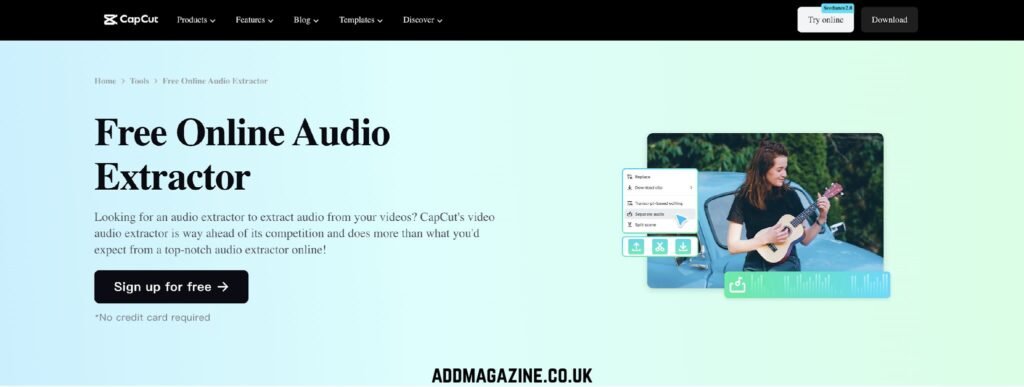
Step 1: Upload Your Video
You can drag and drop your file directly onto the upload area, import from Google Drive or Dropbox using the cloud import buttons on the upload screen, or use the Scan QR code to upload feature to send a file directly from your phone. Once uploaded, your file is ready for extraction with a single click.
Step 2: Extract Audio From Your Video
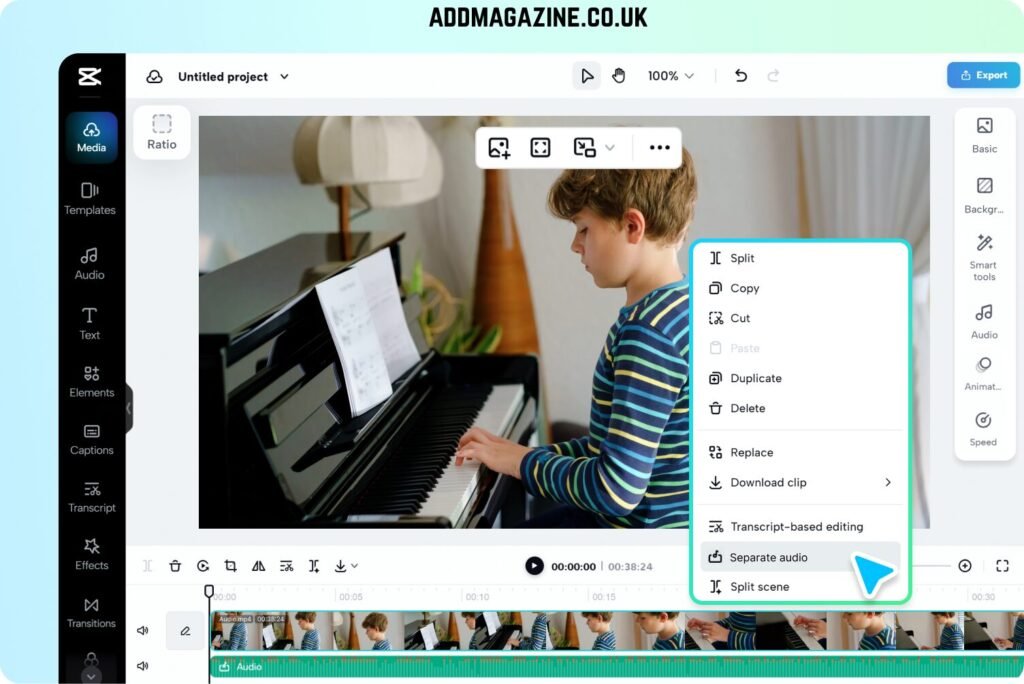
CapCut offers more than one way to extract audio from your recording. Inside the Audio Extractor tool, click Extract audio and CapCut processes the file and separates the audio track automatically. If you are working inside the video editor, you can right-click the video clip on the timeline and select Separate audio to extract the audio track instantly as its own editable layer.
Step 3: Export and Share
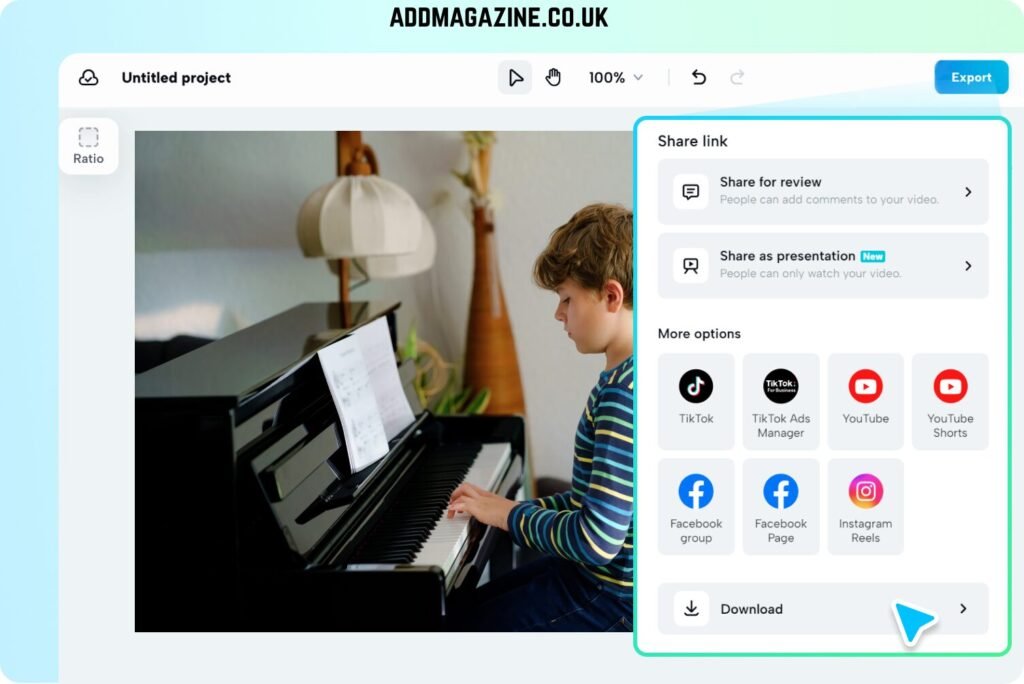
Download your finished, watermark-free audio file instantly by clicking the Download Audio button. The file saves as a clean MP3 ready to upload to your podcast hosting platform, use as narration inside a new CapCut video project, or share as a standalone audio post on LinkedIn and other platforms that support the format. You can also share the finished video clip directly to TikTok, YouTube Shorts, Instagram Reels, and Facebook from the Export panel without downloading first.
The Compounding Return of Multi-Format Distribution
Build this workflow into your process from the very first episode. After every recording session, spend thirty minutes extracting your best moments, cutting two or three short video clips, and generating your visual assets. Over the course of a year, that habit turns your podcast into a content engine that reaches audiences across every major platform, not just the people already browsing podcast directories.
The episodes get better as your skills develop. The distribution gets broader as your content spreads across platforms. The audience grows as more people discover the show through different entry points. That is the compounding return of treating your podcast as a multi-format content asset rather than just an audio file sitting in an RSS feed waiting to be found.