

Removing unwanted programs on Windows shouldn’t feel like a chore. Yet, the default Windows uninstallation process often involves multiple clicks, hidden leftovers, and stubborn apps that refuse to disappear. This is where IObit Uninstaller 15 Free completely changes the game—especially with its powerful right-click uninstall feature.
With just a single right-click, you can instantly remove applications, clean leftover files, and keep your system running smoothly. In this guide, we’ll explore how IObit Uninstaller 15 lets you uninstall apps in Windows 11 faster than ever, why it’s more effective than the built-in Windows uninstaller, and how to unlock its advanced one-click removal tools.
Why Traditional Uninstall Methods Fall Short
While it removes the main application, it often leaves behind:
- Residual files and folders
- Registry entries
- Cached data
- Background services and startup items
Over time, these leftovers slow down your PC, waste disk space, and sometimes cause software conflicts. For users who frequently install and remove programs, relying solely on the native Windows uninstaller simply isn’t enough.
That’s why millions of users turn to a dedicated uninstaller solution like IObit Uninstaller, which focuses on complete removal, not partial cleanup.
What Makes IObit Uninstaller 15 Different?
IObit Uninstaller 15 Free is designed to provide a fast, safe, and thorough software removal experience. Unlike traditional tools, it goes beyond standard uninstallation by automatically detecting and deleting leftover files, bundleware, and even malicious extensions.
Key advantages include:
- Right-click uninstall from desktop or File Explorer
- One-click “Powerful Uninstall”
- Removal of stubborn and broken programs
- Automatic residual file cleanup
- Support for Windows apps and browser extensions
How Right-Click Uninstall Works in IObit Uninstaller 15
One of the standout features of IObit Uninstaller 15 is its Windows context menu integration. This allows you to uninstall apps directly from where they’re located—no need to open Control Panel or navigate system settings.
Step 1: Enable the Right-Click (Context Menu) Option
Before using this feature, make sure it’s enabled:
- Open IObit Uninstaller 15
- Click the Options icon (three horizontal lines) in the top-right corner
- Select Settings
Once enabled, the feature works automatically across your system.
Step 2: Uninstall Apps Directly from Desktop or File Explorer
Now comes the fun part—fast removal with minimal effort:
- Locate the app’s desktop shortcut, icon, or executable file
- Right-click on it
- Select Powerful Uninstall from the context menu
- IObit Uninstaller launches instantly and scans for leftover files
- Confirm removal and let the tool clean everything in one go
That’s it. No extra windows. No hunting through menus. Just a smooth, one-click uninstall experience.
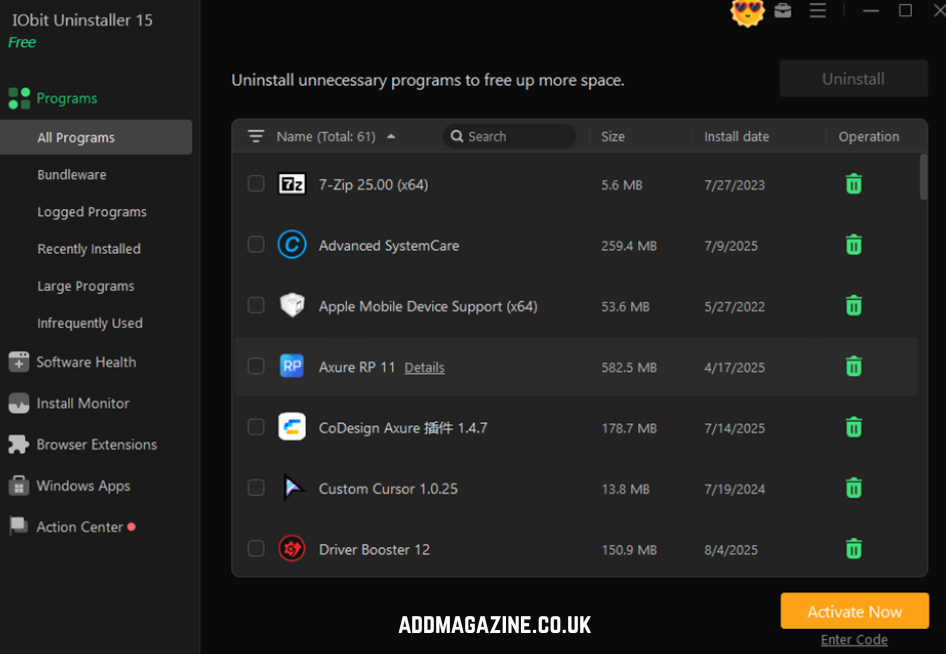
This is especially useful if you want to uninstall apps in Windows 11 quickly without navigating the Settings app every time.
Additional Fast Uninstall Methods in IObit Uninstaller 15
Right-click uninstall is powerful, but it’s only one of several time-saving options included in IObit Uninstaller 15.
Easy Uninstall (Drag & Drop)
For even faster removal, use the Easy Uninstall feature:
- Open IObit Uninstaller
- Drag the green uninstall icon
- Drop it onto any desktop shortcut or open program window
The software instantly identifies the app and begins the uninstall process.
Batch Uninstall Multiple Apps
Need to clean up your system fast?
- Open IObit Uninstaller
- Select multiple programs at once
- Click Uninstall
This feature is perfect for removing unused software after a Windows upgrade or cleaning up a new PC.

Force Uninstall+ for Stubborn Programs
Some apps refuse to uninstall due to broken uninstallers or missing files. That’s where Force Uninstall+ shines.
By right-clicking a program file and choosing Force Uninstall+, IObit removes programs that standard methods simply can’t touch. It’s especially effective for:
- Corrupted software
- Partial installations
- Programs with missing uninstall entries
IObit supports removal of over 4,000 stubborn programs, making it one of the most reliable solutions available.
Automatic Residual Cleanup for One-Click Removal
Want a fully automated experience?
In Settings, you can enable “Automatically remove residual files.”
This ensures that after every uninstall, leftover files, folders, and registry entries are deleted automatically—no extra confirmation needed.
The result? A cleaner system with zero manual effort.
Beyond Uninstalling: Advanced Features That Add Real Value
Its advanced features ensure not only thorough uninstallation but also smarter control over installed programs.
Real-Time Install Monitor
The Real-Time Install Monitor records every change made during software installation, including startup entries, system services, scheduled tasks, and DLL registrations. By tracking these components from the very beginning, it ensures future uninstalls are highly accurate, removing every trace of the software without leaving residual files behind.
Intelligent Software Health
The Intelligent Software Health feature actively improves system performance by managing hidden software permissions, blocking disruptive popup notifications, and removing malicious software and browser extensions. It also cleans unnecessary setup files that waste disk space. For rarely used programs, Software Hibernation allows you to put them to sleep, freeing up system resources without fully uninstalling them.
Built-In Software Updater & File Shredder
IObit Uninstaller 15 also includes a Software Updater to keep your programs current and secure, along with a File Shredder that permanently deletes sensitive files using secure, irreversible shredding methods. Together, these tools make IObit Uninstaller far more powerful than a standard uninstaller.
Final Thoughts
If you’re tired of slow, incomplete uninstall processes, IObit Uninstaller 15 Free offers a smarter and faster alternative. Its right-click uninstall feature alone saves time, while its advanced cleanup tools ensure your system stays clean, secure, and responsive.
Whether you want to remove a single app instantly or clean your entire system in one go, IObit Uninstaller delivers a smooth, powerful experience—especially for users looking to efficiently uninstall apps in Windows 11.