
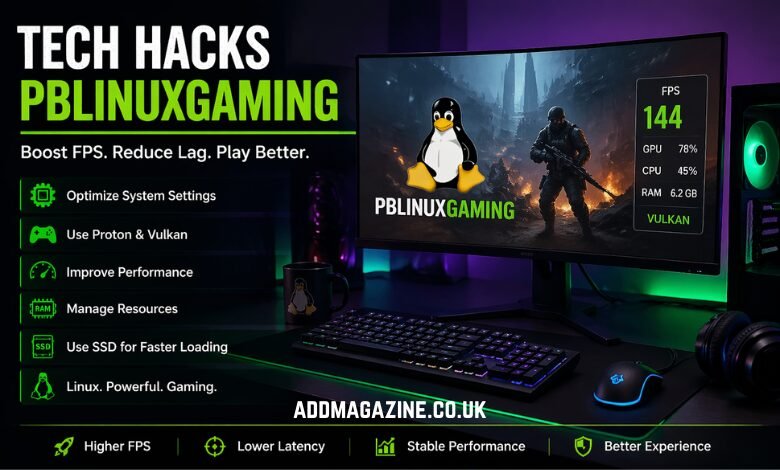
Linux gaming has come a long way, thanks to advancements in software, tools, and drivers. While many associate gaming with Windows, Linux users have been able to enjoy smooth, efficient gaming experiences as well, provided they make the right tweaks. From configuring your graphics drivers to using the proper software, there are several methods that can significantly enhance your gaming performance on Linux. Here’s a comprehensive guide to optimizing Linux gaming and ensuring smooth gameplay, whether you’re a casual gamer or a competitive player.
1. The Importance of Drivers and System Setup
At the core of every great Linux gaming experience is a well-configured system. A setup that doesn’t properly configure hardware and software will yield poor performance, regardless of how powerful the hardware might be. The foundation of achieving better performance lies in using updated and compatible drivers for your system.
Graphics Drivers
Graphics drivers are paramount in delivering smooth and stable gaming performance. Whether you’re using an NVIDIA or AMD GPU, choosing the right driver for your graphics card will give you substantial improvements in frame rates and stability.
- NVIDIA Users: To get the best performance, you should always use proprietary NVIDIA drivers. These drivers are specifically designed to enhance performance and provide better compatibility with Linux gaming systems.
- AMD Users: AMD users benefit from Mesa drivers, which are open-source and regularly updated. Ensure you’re using the latest version with Vulkan support for optimal performance, as Vulkan allows for better hardware usage and efficiency.
Updated Kernel and Packages
Another vital step in improving Linux gaming performance is keeping your Linux kernel and system packages up to date. A newer kernel version brings enhanced memory handling, CPU scheduling, and improved responsiveness. Kernel updates play a huge role in optimizing game performance, especially for games that are resource-intensive.
- Benefits of Kernel Updates:
- Better CPU scheduling ensures consistent frame delivery.
- Reduced latency minimizes lag spikes, especially in competitive multiplayer games.
- Performance enhancements focused on gaming will result in smoother, more responsive gameplay.
2. Steam Play and Proton: A Game-Changer for Linux Gamers
For many gamers, Steam is the gateway to gaming on Linux. Steam’s Proton compatibility layer allows you to run Windows-based games on Linux, expanding the library of games available. Setting up Proton correctly can give you access to thousands of Windows games with better compatibility and performance.
Enabling Steam Play
Steam Play enables compatibility for non-native Linux games. By enabling Steam Play in the settings, you can run almost any game on your Linux system, provided you have the necessary configurations in place.
- Proton Versions Matter: Different games perform better with different Proton versions. Some games may require older versions of Proton, while others benefit from the latest releases. Proton also uses Vulkan to translate DirectX calls, which helps improve performance when running Windows games on Linux.
- Shader Caching: An important feature of Proton is its shader caching. Shader caching helps prevent stuttering during gameplay, especially during the initial runs of a game. This technique also eliminates frame drops in intense scenes, resulting in a smoother gaming experience.
3. CPU and Memory Tuning for Optimal Gaming Performance
CPU Settings
Your CPU is responsible for the overall performance of your system, and its settings play a huge role in gaming performance. By default, Linux may limit CPU usage, but switching to performance mode can unlock your CPU’s full potential, improving gaming performance.
- Install cpufrequtils: This tool allows you to set your CPU governor to ‘performance’ mode. By switching to this mode, the CPU runs at maximum frequency, which is ideal for gaming.
- Gamemode: Installing and enabling Gamemode on your system is another great way to optimize performance. Gamemode automatically boosts system performance when gaming by adjusting CPU and GPU settings. It also minimizes background tasks and ensures that the system runs as efficiently as possible during gaming sessions.
Memory Management
Memory plays a crucial role in gaming performance, especially for modern, resource-heavy titles. Ensuring that your memory is optimally configured can significantly reduce stutter and load times.
- Swappiness and RAM Usage: Swappiness determines how often your system uses swap space. Lowering the swappiness value ensures that data stays in RAM for faster access, reducing stutter.
- SSD Storage: Installing games on an SSD rather than an HDD can drastically reduce load times and prevent lag spikes. This setup is a must for modern gaming systems, as SSDs provide significantly faster read and write speeds.
- RAM Considerations: More RAM allows for better multitasking and stability during gaming. For casual gaming, 8 GB of RAM should suffice, but for newer, more demanding titles, 16 GB is advisable. High-end gaming setups may require 32 GB or more.
4. Graphics Settings and Tuning for Better FPS
Graphics settings can have a significant impact on FPS. By tweaking certain settings in-game or on your system, you can achieve better frame rates and a smoother gaming experience.
Reducing Graphics Load
While high graphics settings can make a game look stunning, they can also tax your system. Lowering some settings can yield better performance.
- Disable Shadows: Disabling shadows can drastically increase FPS, especially in games that rely heavily on dynamic lighting and shadows.
- Turn Off V-Sync: V-Sync is designed to eliminate screen tearing but can also lower your frame rate. Disabling it can improve FPS and reduce input lag, although it may result in occasional screen tearing, particularly on higher FPS systems.
- Dedicated GPU Usage: Ensure your system uses the dedicated GPU for gaming rather than the integrated graphics. This simple setting can significantly boost your gaming performance.
5. Lightweight Desktop Environments and Compositing
Switch to Lightweight Desktop Environments
Desktop environments like GNOME and KDE can consume significant system resources, which might interfere with your gaming experience. To maximize resources for gaming, consider switching to lighter desktop environments like XFCE or LXQt. These environments use fewer resources, leaving more power for your games.
- Disable Desktop Compositing: Many desktop environments use compositors that add effects like transparency, shadows, and animations. These can slow down your system and reduce FPS. By disabling compositing, you free up resources for gaming and improve frame rates.
6. Vulkan and FSR: Boosting Performance with Modern Technologies
Vulkan for Better Graphics
It is an advanced graphics API that offers lower CPU overhead and better performance compared to older APIs like OpenGL. Modern Linux gaming, especially through Proton, relies heavily on Vulkan for running DirectX-based games.
- Vulkan Support: Ensuring that your system supports Vulkan is essential for optimal performance, as it allows for better frame pacing and lower CPU usage.
FSR for Higher FPS
FidelityFX Super Resolution (FSR) is a technology developed by AMD to boost frame rates by rendering games at lower resolutions and then upscaling them. This technique has minimal quality loss while providing higher FPS, making it ideal for gaming on lower-end systems.
- FSR on Both AMD and NVIDIA: FSR works well on both AMD and NVIDIA graphics cards, allowing players to achieve higher frame rates without sacrificing too much visual quality.
7. Gaming Kernels and Further Optimizations
Advanced users can go even further by installing specialized gaming kernels. These kernels are optimized for gaming performance, reducing latency and improving responsiveness.
- Gaming Kernels: These kernels improve CPU scheduling and offer better overall performance. Some gaming kernels can boost FPS by up to 29%, offering a noticeable improvement, especially in fast-paced games.
8. Hardware Considerations for Optimal Performance
While software optimizations are crucial, hardware still plays a major role in gaming performance. Upgrading your hardware can have a significant impact, especially for resource-intensive games.
- GPU: A powerful GPU, such as the latest RTX or Radeon cards, can provide the most substantial boost in FPS. Modern GPUs require Vulkan support to enhance game performance on Linux, offering optimized graphics and better efficiency.
- CPU: A faster CPU helps with frame stability, physics calculations, and AI processing. For smooth gaming, make sure your CPU is powerful enough to handle the demands of modern titles.
- Storage: Using SSD storage instead of an HDD will not only reduce load times but also prevent lag spikes, resulting in a smoother overall experience.
9. The Road to Smoother Linux Gaming
Linux gaming has improved drastically over the years, but to truly optimize your experience, you need to dive into the details of system configuration. By updating drivers, fine-tuning CPU and memory settings, using the right desktop environment, and leveraging Vulkan and other modern technologies, you can achieve a gaming experience that rivals or even exceeds that of Windows.
With these tech hacks and optimization tips, you’ll notice a huge difference in game performance, resulting in a much more enjoyable experience on your Linux system. Whether you’re a casual gamer or a competitive player, these tweaks can help unlock the full potential of your gaming rig.
For more updates and tips on Linux gaming, keep an eye on sources like PBLinuxGaming, where you can stay updated with the latest news, trends, and performance-enhancing techniques in the world of Linux gaming.
10. Optimizing Multiplayer Gaming Performance
When it comes to multiplayer gaming, smooth connectivity and minimal latency are critical. In Linux gaming, certain network optimizations can help reduce lag, ensure stable connections, and improve the overall gaming experience.
Network Optimizations
To reduce latency and packet loss during online multiplayer gaming, ensure that your network connection is optimized.
- Disable Network Manager for Gaming Sessions: Network Manager can sometimes interfere with the performance of network-dependent games. By disabling it or setting it to manual mode during your gaming sessions, you can avoid interruptions or delays caused by automatic network reconfiguration.
- Use a Wired Ethernet Connection: While Wi-Fi is convenient, it often introduces more latency and can cause jitter or connection drops during heavy online gaming. A wired Ethernet connection is more stable and provides better performance.
- Network Latency Tuning: Linux provides the ability to tweak network settings for better performance. Consider tweaking the TCP congestion control algorithm and using latency reduction methods such as enabling TCP/UDP optimizations through
sysctlcommands.
Online Servers and Ping Considerations
Choosing the right game server can significantly improve your online gaming experience. Servers located geographically closer to you will reduce the ping and provide more responsive gameplay. If you experience high ping, use tools like ping or traceroute to troubleshoot potential bottlenecks in your internet connection.
11. Power Management Settings for Gaming Laptops
If you’re gaming on a laptop, power management settings can have a significant impact on your gaming experience. Many gaming laptops are designed to throttle performance to conserve battery life, which can reduce FPS and increase input lag during gaming.
Disable Power Saving Features
To ensure your laptop runs at maximum performance during gaming, disable power-saving features like CPU throttling and dynamic frequency scaling. You can use tools like tlp or powertop to tweak power management settings. This will help the laptop run at its highest possible clock speed and improve FPS during gaming.
Use AC Power Instead of Battery
Gaming laptops often perform better when plugged into AC power. If you are gaming while your laptop is on battery power, the system might automatically reduce performance to save energy. Always plug your laptop into a power source during gaming sessions to get the best performance.
12. Advanced Gaming Performance: Overclocking
For users looking to push their Linux gaming setup to the next level, overclocking can provide significant performance improvements. Overclocking involves increasing the clock speed of your GPU or CPU beyond the manufacturer’s specifications.
a. Overclocking the GPU
Overclocking your graphics card can result in a noticeable performance boost, especially in graphics-intensive games. Tools like nvidia-settings for NVIDIA users or AMD overdrive for AMD users allow you to safely increase the clock speeds of your GPU. However, make sure you monitor temperatures to avoid overheating your hardware.
b. Overclocking the CPU
Overclocking your CPU can also improve frame rates in CPU-bound games. Linux has various tools like cpupower and lm-sensors that can help you manage and monitor your CPU’s overclock settings. Be cautious and test stability to avoid crashes.
c. Cooling Solutions
When overclocking, temperature management becomes crucial. Overclocking generates additional heat, and without proper cooling, it can lead to system instability. Consider investing in a good cooling solution, such as a cooling pad for laptops or aftermarket cooling solutions for desktop PCs.
13. System Monitoring for Gaming Performance
Monitoring your system’s performance is key to understanding how your tweaks are affecting gameplay. There are several tools in Linux to monitor your CPU, GPU, and overall system performance while gaming. By keeping an eye on resource usage, you can identify potential bottlenecks and adjust settings accordingly.
System Monitoring Tools
- htop: A command-line tool to monitor CPU and memory usage. It provides a detailed real-time overview of resource consumption, helping you track what’s using up CPU and RAM.
- nvidia-smi: For NVIDIA users,
nvidia-smiis a powerful tool for monitoring the GPU’s performance, temperature, and power usage. - radeontop: AMD users can use
radeontopto track GPU performance in real-time, enabling you to check the load on the graphics card during gaming.
By monitoring these statistics during gameplay, you can assess whether your system is bottlenecked by CPU, GPU, or memory and adjust settings accordingly.
14. Backup and Restore Configurations for Linux Gaming
As you dive deeper into gaming optimizations, there may be times when your system experiences issues or crashes. Having a reliable backup and restore solution in place is critical, particularly when trying out various performance tweaks.
Backing Up Game Configurations
Linux allows you to create backups of system configurations, which can help restore your settings if something goes wrong. You can back up the .config folder, which holds the configuration files for various programs, including game clients like Steam.
- Create Backup Scripts: Automate the backup process by writing simple shell scripts that back up your game settings, configuration files, and even installed packages. Tools like
rsyncandtarcan help you create compressed backups that you can easily restore when needed. - Use TimeShift for System Snapshots: TimeShift is a useful tool for creating system snapshots. It enables you to restore your entire Linux system to a previous state in case anything goes wrong with your performance optimizations or updates.
15. Stay Informed About New Gaming Technologies
The world of Linux gaming is constantly evolving, and staying informed about the latest tools, drivers, and technologies is crucial for keeping your system optimized.
Follow Gaming Communities
Online forums, Linux gaming subreddits, and communities like r/linux_gaming are great places to find up-to-date information about new performance tweaks, drivers, and game compatibility. Engaging with other gamers who use Linux can help you learn about the latest best practices and tools.
Tech Blogs and Reports
Stay updated by reading reports and tech blogs like PBLinuxGaming, which focus specifically on Linux gaming news, new trends, and performance-enhancing tips. These sources can help you discover new developments that can improve your gaming experience.
Keep Track of Game Patches
Game developers regularly release patches that improve game performance and fix bugs. These updates may include Linux-specific fixes or optimizations for Proton. Always keep your games updated, as these updates can significantly impact performance.
Conclusion
Optimizing Linux gaming isn’t just about one or two tweaks; it’s a combination of proper setup, regular maintenance, and ongoing adjustments. Whether you’re updating your drivers, using Proton for better compatibility, or tweaking your CPU settings, each step contributes to a better overall gaming experience. From keeping your system up to date with the latest drivers and kernels to optimizing your CPU, RAM, and graphics settings, these practical tips will help you get the best possible performance out of your Linux gaming system.
By consistently applying these techniques, you’ll enjoy smoother gameplay, higher FPS, and better overall stability. And as the Linux gaming ecosystem continues to grow, staying informed about new developments will ensure that your gaming experience remains top-notch.
For more in-depth guides and the latest Linux gaming news, be sure to check out PBLinuxGaming and keep up with the latest performance-enhancing tips and tricks.