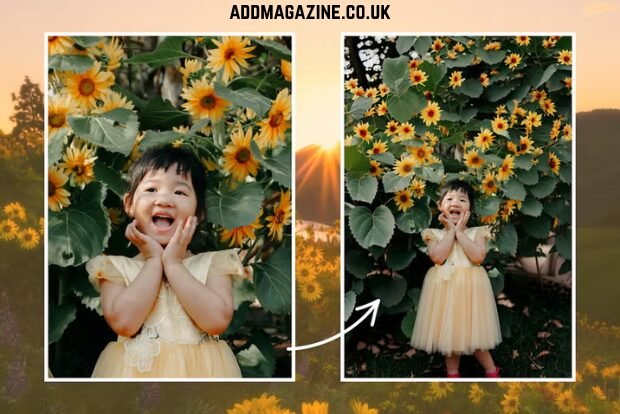
Most people don’t start image editing with a blank canvas. They start with something that’s almost right.
We’ve all been there. You take a product photo and the background looks dull. You capture a portrait that’s stunning, but the tight framing slightly diminishes its impact Or you have two separate images that belong together, but combining them would mean hours in Photoshop cutting edges, matching shadows, and nudging every pixel into place. For professional designers, that’s a regular Tuesday. For the rest of us, it’s a reason to close the laptop and move on.
Not the text-to-image generators that spit out random pictures from prompts, but the kind that take your existing photos and reshape them into something better. Pixlio is built around that idea — giving people real editing superpowers without asking them to learn real editing software.
When Two Images Need to Become One
You have a clean product shot on a white background. You also have a lifestyle photo — maybe a cozy living room or a sunlit café table. In your head, the product sitting in that scene would make a great campaign image. In reality, getting there manually means masking, color-matching, shadow work, and a lot of patience.
Pixlio’s AI image combiner lets you skip most of that. Upload two images, tell the tool what you’re going for, and it generates a new composition where both elements sit together naturally — matching lighting, mood, and color tone as if they were always part of the same shot.
It’s not just about e-commerce, either. Bloggers can build original article headers instead of recycling the same stock photos everyone else uses. Marketers can test ad concepts in minutes rather than waiting on a design round.
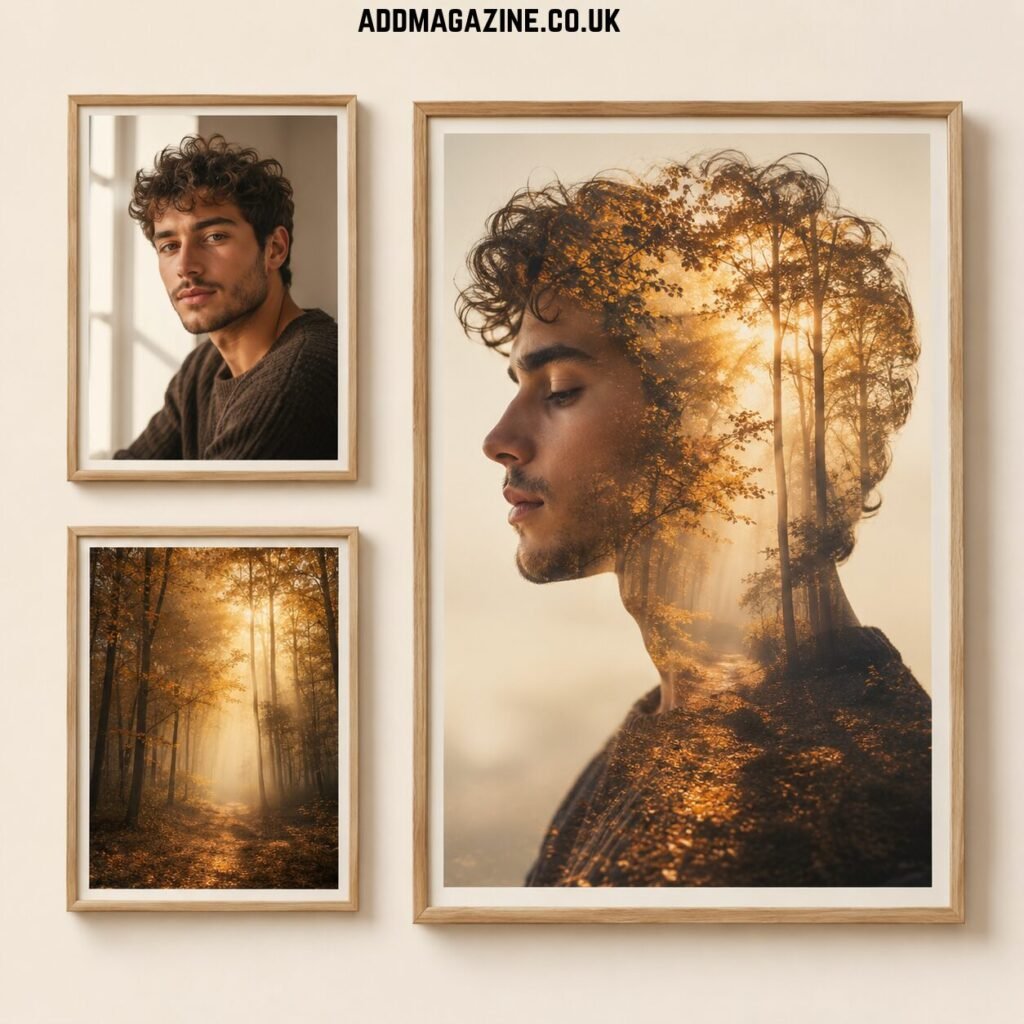
Pixlio AI Image Combiner blends a portrait and an autumn forest scene into a refined double-exposure artwork, turning two separate images into one cohesive visual concept.
The part that actually changes your workflow, though, is the speed of experimentation. When combining images takes seconds instead of hours, you stop committing to the first option that looks “good enough.” You try five combinations, maybe ten. You find something you wouldn’t have thought of if the process had been slower. That kind of creative freedom used to be reserved for people with design budgets. Now it’s a few clicks.
Giving Images More Room to Breathe
Then there’s the framing problem. You have a great vertical portrait, but you need a wide banner. A square product image that won’t fit your website header. A landscape photo that’s too tight for a YouTube thumbnail with text overlay.
Cropping won’t fix this — you’d lose the subject. Stretching looks terrible. Adding a plain colored border looks lazy. What you actually need is more image around the edges, and it needs to look like it was always there.
That’s what an AI outpainting tool does. It extends an image beyond its original borders by generating new surrounding content that matches the original scene — the textures, the lighting, the depth. Think of it as giving your photo more room to breathe.
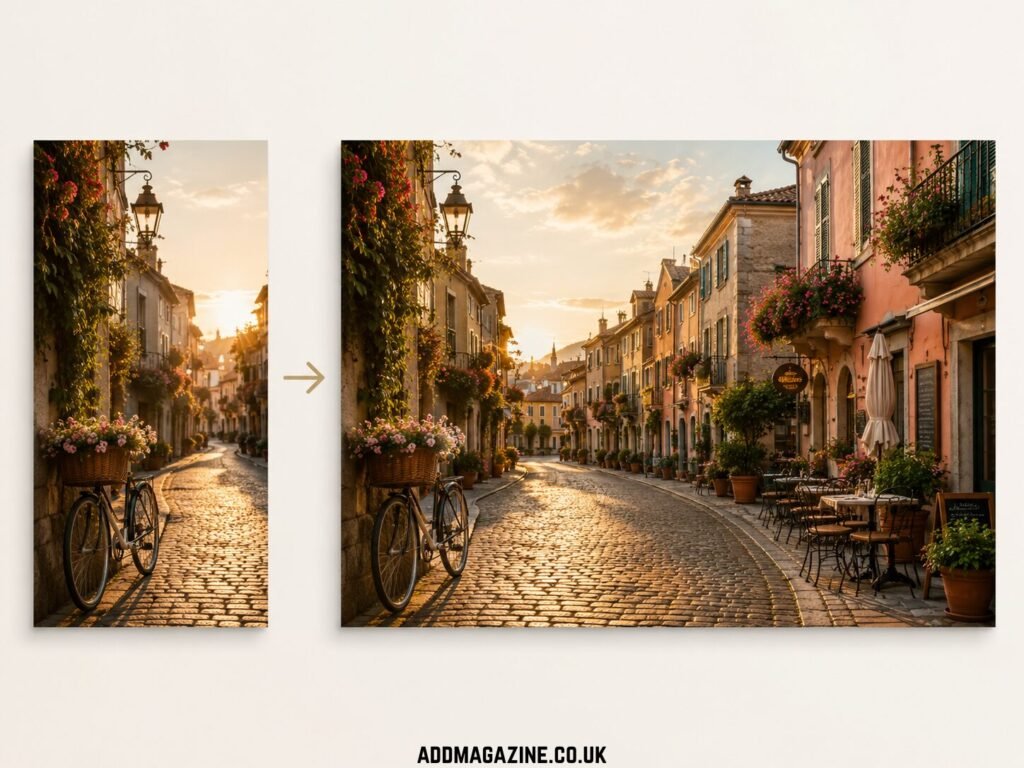
Pixlio AI Image Extender expands a narrow street photo into a wider, more immersive scene while preserving the original lighting, perspective, and visual style.
This matters because one image today needs to work in half a dozen places: Instagram post, blog header, email banner, ad creative, landing page hero. Each format wants a different aspect ratio. Outpainting means you can adapt a single shot to all of them without reshooting or rebuilding from scratch.
A tightly cropped photo can feel constrained, almost claustrophobic. Open it up and suddenly the same subject looks more cinematic, more composed, more intentional.
Less Technical, More Creative
What makes these tools worth talking about isn’t the AI behind them — it’s the workflow they unlock. People don’t think in terms of “masking” or “perspective correction.” They think: “I want these two things in the same picture” or “I need this photo wider.” Pixlio meets that kind of thinking directly.
Merge two images to create a new composition, then expand the edges to suit a banner layout. Start with a phone photo and end with something that looks like it came from a content studio. The steps between idea and finished visual get shorter, and that’s where the real value is — not in replacing creativity, but in removing the friction that gets in the way of it.
For anyone who’s ever had a visual idea stuck in their head but no easy way to make it real, that shift is hard to overstate.