
If you’re searching for how to clear disk space on Windows 11, you’re likely dealing with a slow system or constant low-storage warnings. This problem often appears when accumulated files, applications, and system updates gradually build up over time.
Knowing how to free up disk space in Windows 11 properly can improve performance without risking important data. In this guide, you’ll learn practical, safe, and effective ways to clean up your storage.
What Is Taking Up Your Disk Space on Windows 11?
Before learning how to clear disk space on Windows 11, it’s important to understand what is using your storage.
Windows 11 storage cleanup often reveals several common sources of disk usage:
- Temporary files: These include cache files, logs, and leftover data from apps and updates.
- System updates: Windows keeps updating files and backups, which can take up significant space over time.
- Large files: Videos, software installers, and archived data often occupy the most visible storage.
- Duplicate files: Multiple copies of the same file can quietly consume large amounts of space.
This approach ensures you clean efficiently while keeping your important data safe.
Quick Ways to Clear Disk Space on Windows 11
1. Run Disk Cleanup Tool
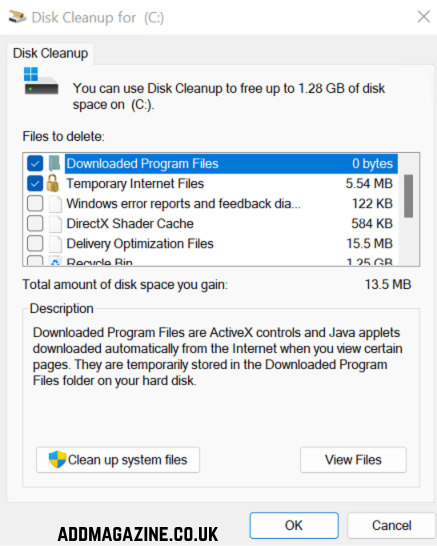
Search for the Windows disk cleanup tool in the Start menu and open it. The tool will scan for unnecessary files like temporary data, system cache, and update leftovers. Choose the items you want to delete and confirm.
2. Empty Recycle Bin
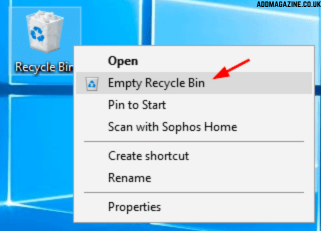
Right-click the Recycle Bin icon and select “Empty Recycle Bin” to permanently remove those files.
3. Clean Downloads Folder
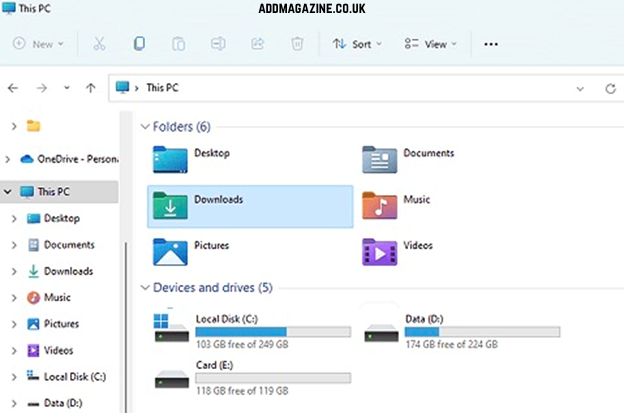
The Downloads folder often contains old installers, documents, or media files. Open it and remove anything you no longer need.
Find and Remove Large Files
Another effective way to free up space is to find large files that Windows systems may be storing. These files often take up the most storage and are easier to identify.
- Open File Explorer and go to the drive you want to clean.
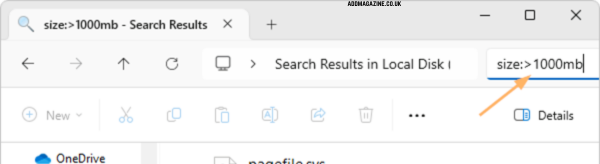
- You can also sort files by size to quickly identify what is consuming space.
Review these files carefully before deleting them. Some may be important, such as system backups or work-related documents. Focus on removing unnecessary videos, old installers, or duplicate media files. This method helps you target high-impact files instead of wasting time on small items.
Remove Duplicate Files to Free Up Space
Duplicate files are one of the most overlooked causes of storage issues.
When you remove duplicate files, Windows systems often regain a large amount of storage instantly.
Users often rely on tools such as 4DDiG Duplicate File Deleter to efficiently scan their system, identify duplicate files, and reclaim valuable storage space.
Key benefits include:
- Automatic duplicate detection: Finds exact copies across folders and drives
- Fast scanning: Quickly analyzes large storage volumes
Use Advanced Storage Management Tools
For deeper optimization, basic cleanup is not always enough. This is where disk space analyzer Windows tools become useful. These tools provide a visual breakdown of how your storage is used.
They display folders and files based on size, helping you quickly identify what is taking up the most space. Instead of guessing, you get a clear overview of your storage usage.
Advanced tools also help manage storage more efficiently by identifying hidden files, system data, and unused applications. This makes them ideal for long-term storage management, not just one-time cleanup.
Tips to Prevent Disk Space from Filling Up Again
Once you clear storage on Windows 11 systems, it’s important to maintain that space. Without proper habits, storage will fill up again quickly.
- Perform regular cleanup using built-in tools
- Avoid downloading duplicate files or unnecessary software
- Organize files into folders for better management
- Monitor storage usage periodically
These practices help maintain performance and prevent future storage issues.
FAQ Section
Q1: What is the fastest way to clear disk space on Windows 11?
The fastest way is to use the Windows disk cleanup tool, empty the Recycle Bin, and delete temporary files. These methods provide immediate results.
Q2: Why is my disk space still full after cleaning?
This usually happens due to hidden files, system data, or duplicate files that are not removed by basic cleanup methods.
Q3: What is the best tool to remove duplicate files?
Many users prefer tools like 4DDiG Duplicate File Deleter because they automatically detect and safely remove duplicate files.
Q4: How often should I clean disk space?
It’s recommended to clean your system at least once a month to maintain performance and prevent storage issues.
Conclusion
Learning how to clear disk space on Windows 11 helps you improve system performance and avoid storage warnings. From quick cleanup methods to removing duplicates and analyzing storage, each step plays an important role. By combining these techniques and maintaining good habits, you can keep your system running smoothly without deleting important files.