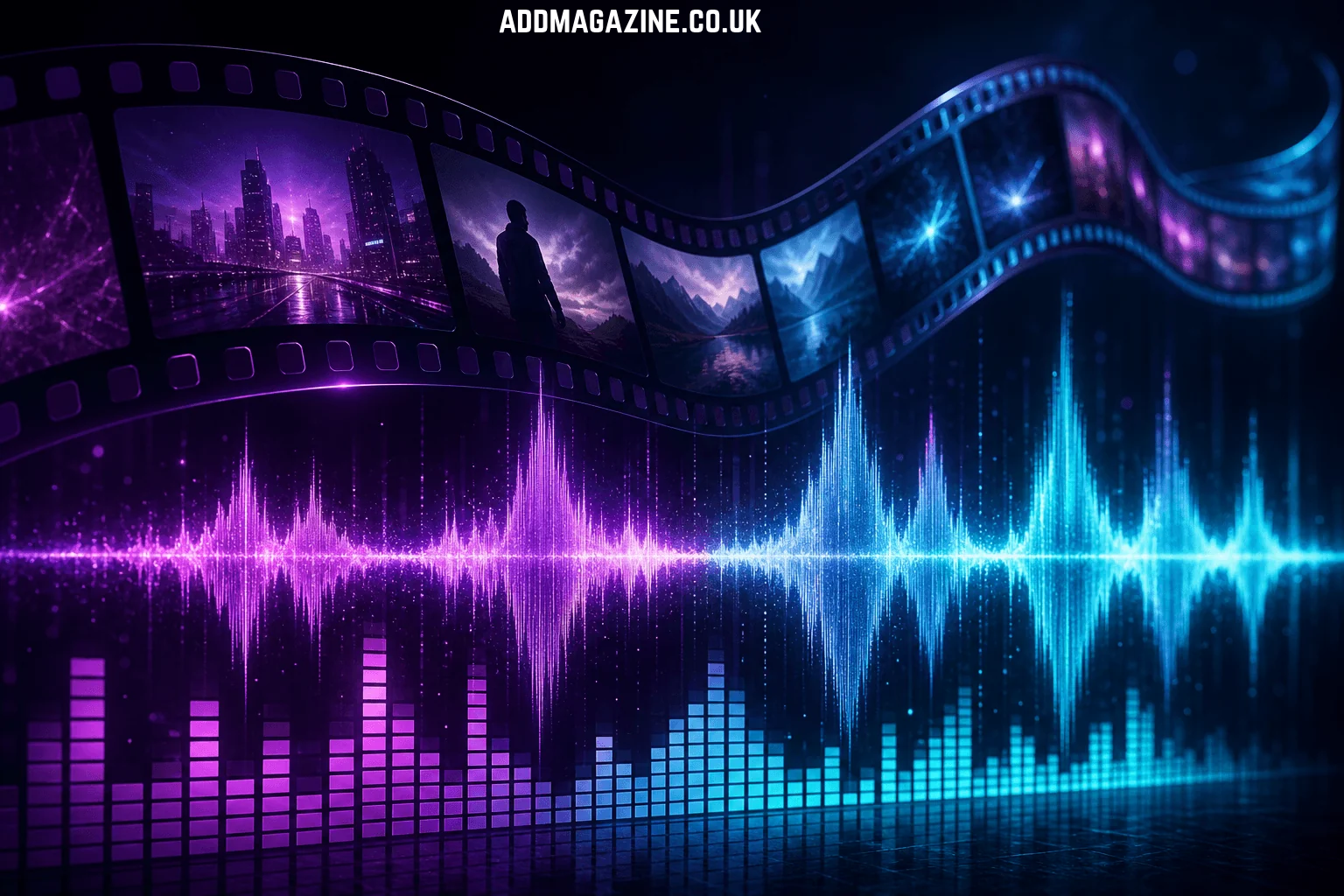
A music video used to mean a film crew, locations, lighting and a budget most independent artists simply don’t have. Today, AI video models can generate atmospheric scenes, recurring characters and cinematic camera moves from a few lines of text. The result won’t replace every traditional shoot, but for independent musicians, small labels and content creators, it opens the door to visuals that were out of reach before.
The key is to combine different approaches rather than depending entirely on one. On Animx, two very different video models complement each other well for music visuals, and this guide shows how to plan, generate and edit a complete music video with them.
Why Two Models Work Better Than One
A good music video balances mood and story. Some moments need pure atmosphere, while others need a character, a location or a transition that lands exactly where you want it.
Grok Imagine is xAI’s model for atmospheric, mood-led visuals with native synced audio. Animx describes it as the strongest choice for a music-video aesthetic and mood reels, and it’s at its best with bioluminescence, fog, neon and dusk. It generates clips from 1 to 15 seconds, from text or a starting image, at 480p or 720p.
Seedance 2.5 is ByteDance’s advanced video generation model, designed to give creators greater flexibility and precision. It accepts up to nine reference images, called in the prompt as @Image1 to @Image9, lets you set a first frame and an optional last frame and produces one continuous shot of up to 30 seconds at up to 1080p, in 16:9, 9:16 or 1:1.
Together, they cover both sides of a music video: Grok Imagine sets the mood, and Seedance 2.5 carries the story.
Step 1: Map the Song Into Sections
Start with the track, not the prompts. Listen through, mark the sections and decide what each one should feel like. A simple shot plan might look like this:
| Song section | Visual idea | Model | Clip length |
|---|---|---|---|
| Intro | Fog rolling over a neon-lit city at dusk | Grok Imagine | 8 to 10 seconds |
| Verse 1 | The main character walks through empty streets | Seedance 2.5 | 15 to 20 seconds |
| Chorus | Glowing, dreamlike visuals that pulse with color | Grok Imagine | Several 4 to 6 second clips |
| Verse 2 | The character reaches a rooftop above the city lights | Seedance 2.5 | 15 to 20 seconds |
| Bridge | A slow, surreal scene with bioluminescent light | Grok Imagine | 10 to 15 seconds |
| Final chorus | Character and atmosphere together, ending on the title card | Seedance 2.5 | Up to 30 seconds |
Planning first saves credits, because you only generate the shots the song actually needs.
Step 2: Build a Visual Identity
Consistency is what makes a music video feel intentional. Before generating, decide on:
- A color palette, such as violet and teal neon or warm amber dusk
- Recurring motifs, like fog, rain, city lights or glowing particles
- A main character, saved as a set of reference images you can reuse in every Seedance 2.5 shot
- One or two locations, also saved as reference images
You can create the character and location references with Animx’s image generator. If the video features a real artist, use their photos only with their consent. Otherwise, an invented character keeps things simple and avoids likeness issues.
Step 3: Create the Atmosphere With Grok Imagine
Use Grok Imagine for intros, choruses, bridges and transitions. Its prompts work best when they describe the mood, the scene and the sound, with clear cues for lighting, weather and color.
Example prompts:
- “Thick fog drifts across a neon-lit city at dusk, violet and teal light glowing through the haze, slow drifting camera, low ambient hum and distant rain.”
- “A dark forest at night filled with glowing blue bioluminescent plants, tiny particles floating upward, dreamlike and slightly surreal, soft wind and a deep pulsing tone.”
Draft at 480p to explore ideas quickly, then render your favorite versions at 720p for the hero cut. You can also upload a starting image, such as artwork you own, and let Grok Imagine animate it into an atmospheric clip.
Step 4: Tell the Story With Seedance 2.5
Use Seedance 2.5 for the shots that need a character, a location or a precise transition. Animx recommends prompts of about 20 to 60 words, written like a shot list.
Example prompts:
- “@Image1 walks slowly down an empty rain-soaked street at night, neon signs from @Image2 reflecting in puddles, tracking shot from the side, soft rain and distant traffic.”
- “@Image1 stands at the edge of a rooftop as the camera pulls back to reveal the glowing city below, light wind moving her coat, calm atmospheric sound.”
Two techniques help the scenes flow:
- Chain your shots with frames. Export the last frame of one clip and use it as the first frame of the next, so the action continues smoothly.
- End on purpose. Add a last frame, such as the song title or the artist’s logo, so the final shot lands exactly on it.
Render the final shots at 1080p, in 16:9 for YouTube or 9:16 for vertical platforms.
Step 5: Replace the Sound With Your Track
Both models generate audio together with the picture. Grok Imagine creates dialogue, ambient sound, foley and music cues, while Seedance 2.5 generates ambience, effects and music. For a music video, you’ll usually mute the generated audio and lay your own track over the edit. Generated ambience can still be useful for an intro or outro before the music starts.
Step 6: Edit to the Beat
Bring all the clips into a video editor and cut them to the rhythm of the song:
- Place cuts on strong beats, especially at the start of each chorus.
- Use short Grok Imagine clips for fast sections and longer Seedance 2.5 takes for slower verses.
- Repeat a signature atmospheric clip at key moments to give the video a recognizable look.
- Keep color consistent across clips, adjusting it in your editor if needed.
One technical detail matters here: Grok Imagine renders up to 720p, while Seedance 2.5 reaches 1080p. Either export the whole video at 720p or bring the Grok Imagine clips up to 1080p with Animx’s AI video upscaler, checking the details afterward, since upscaling regenerates the frames.
A Note on Singing Shots
Close-ups of a character singing the actual lyrics are the hardest part of an AI music video. Neither Grok Imagine nor Seedance 2.5 lists lip-sync among its features, so plan around it. Focus on atmospheric shots, silhouettes, walking scenes, dance moves and wide shots, or film close-up performance shots yourself and mix them with AI visuals. If you include hands playing instruments, review those shots carefully, since fine hand movements can still glitch.
Planning Your Credits
An AI music video can take many generations, so a little planning pays off. Animx estimates about 554 credits for a 5-second 720p Seedance 2.5 clip, with longer and 1080p clips costing more. Grok Imagine’s page doesn’t list a fixed price, but the generator shows the exact cost of every clip before you click generate.
- Draft at 480p and render only the final versions at full quality.
- Reuse loops and atmospheric clips in several sections.
- Plan a manageable number of shots that fits the song’s duration.
Both models are included in every paid Animx plan, including Basic. Animx is free to start, and paid plans include commercial rights. For a full-length video, a higher plan with more monthly credits is usually the practical choice.
Rights and Responsible Use
- Use a track you own or have licensed for video use.
- Get consent before using any real person’s photos or likeness.
- Don’t copy other artists’ signature characters, logos or visual identities.
- Label AI-generated video where platforms or local rules require it.
Final Thoughts
An AI music video works best when each model does what it does best. Grok Imagine brings fog, neon, glowing light and dreamlike moods, while Seedance 2.5 keeps characters consistent, controls transitions and delivers 1080p story shots. Plan the song section by section, build a clear visual identity and edit to the beat, and you can create a music video with a strong, coherent look, all from one Animx workspace.